The component grid
The component tab is where you spend most of your time. One row per component, with state columns for workspace / database / version-control so you can see at a glance what's changed where.
You open a component tab from the Data Components or Object Components menu; one menu item per category defined by your templates.
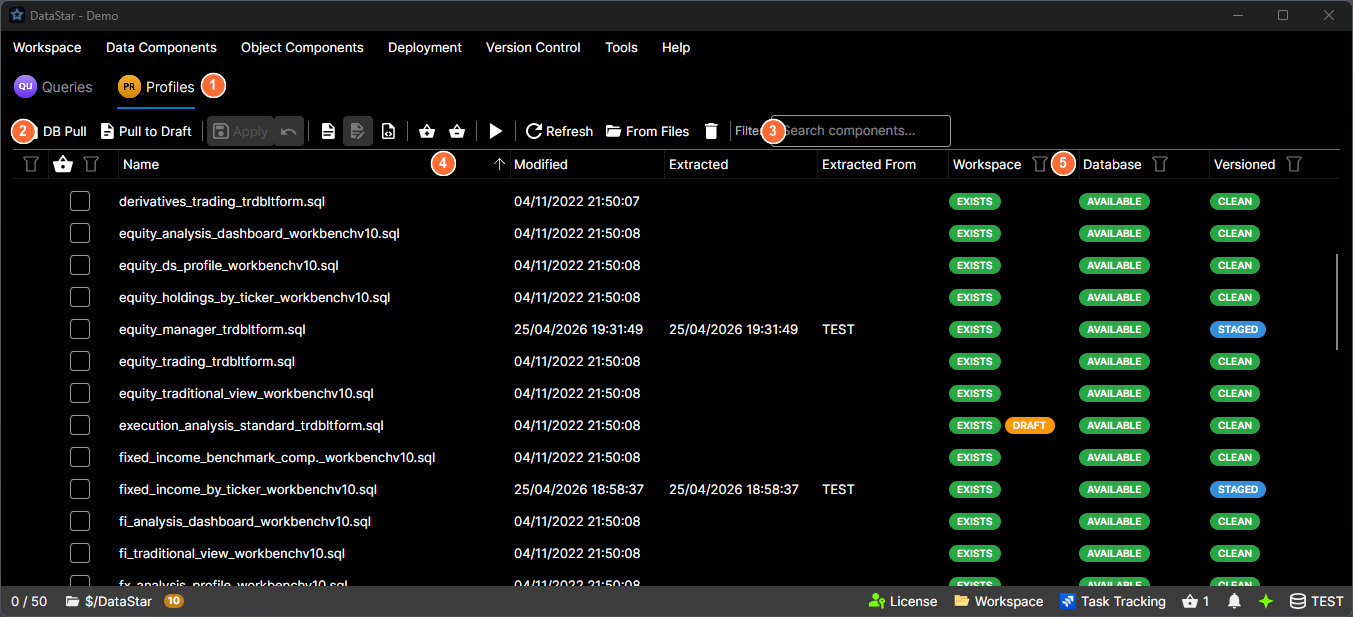
- Tab header: shows the category icon and name (e.g. "Imports").
- Toolbar: DB Pull, Pull to Draft, Apply, Open, Run, Refresh, and more.
- Filter bar: type to narrow the grid by component name.
- Column headers: Name, Modified, Extracted, Extracted From, and the three state columns.
- State columns: Workspace, Database, and Versioned badges, colour-coded for at-a-glance scanning.
Grid columns
Left to right:
| Column | What it shows |
|---|---|
| (error indicator) | Fixed-width icon column. Shows a red × on rows with errors, an orange ⚠ on rows with warnings. Empty otherwise. |
| Basket | Shows whether the component is currently in the deployment basket. |
| Category | Hidden by default; show it when the tab has components from more than one category. |
| Name | The component name. |
| Modified | Last-modified timestamp of the workspace file. |
| Extracted | Timestamp of the last database pull. |
| Extracted From | The database connection the component was last pulled from. |
| Workspace | A status badge showing the file's state on disk (for example, a Draft indicator if a draft exists, or Excluded if the component is a duplicate excluded by the template's ExcludeDuplicates setting). |
| Database | A status badge comparing the workspace copy to the live database. Shows Excluded when the component is a duplicate excluded by the template. |
| Versioned | A status badge for the file's version-control state: modified, new, deleted, conflicted, etc. |
Every state column is colour-coded for at-a-glance scanning. Hover any badge for the precise state text.
Filter bar
At the top of the toolbar, a textbox labelled Filter: narrows the grid. Type one or more terms separated by spaces; case is ignored, and every term must appear in either the component name or its filename for the row to stay visible.
Toolbar
Along the top of the tab. The main buttons, in the order they appear:
- DB Pull (Ctrl+Shift+D). Pull the current database version into the workspace, overwriting the workspace file.
- Pull to Draft (Ctrl+D). Pull into a draft file rather than the workspace.
- Apply (Ctrl+Shift+A). Apply the selected draft(s) to the workspace.
- Undo (Ctrl+Z). Discard the selected draft(s).
- Open (Enter). Open the workspace file in the SQL editor.
- Open Draft. Open the draft file.
- Open Template. Open the template XML.
- Add to Basket (Ctrl+B) / Remove from Basket (Ctrl+Shift+B).
- Run (Ctrl+E). Execute the selected component(s) against the current database connection.
- Refresh (F5). Re-query the database to update state.
- Delete (Delete). Delete the selected row(s).
In Basket mode (when the tab is showing the basket) additional buttons appear: Empty Basket, Go to Component (Ctrl+G), Open Basket File, Save Basket, Create Deployment from Basket.
When a task-tracker connection is active, the toolbar also shows Import from Task Commits, Import from Task Attachment, and Export as Task Attachment.
Context menu
Right-click any row:
- Open Workspace File (Enter)
- Open Draft File
- Open Template
- –
- Database Pull to Workspace (Ctrl+Shift+D)
- Database Pull to Draft (Ctrl+D)
- –
- Apply Selected (Ctrl+Shift+A)
- Apply All
- Discard Selected (Ctrl+Z)
- Discard All
- –
- Compare With…. Submenu:
- Compare with Draft
- Compare with Current Connection
- Compare with Database…
- Compare with Local (HEAD) (Git only)
- Compare with Server (Latest) (TFS only)
- Compare with Remote (Git only)
- Compare with Branch… (Git only)
- Dependencies. Submenu:
- Find Dependencies
- Find Referencing Components
- –
- Database Pull to Folder…
- Generate Drop Script
- –
- Add to Basket (Ctrl+B) / Remove from Basket (Ctrl+Shift+B)
- In basket mode: Empty Basket, Go To Component (Ctrl+G), Open Basket/Deployment File…, Save Basket to File…, Create Deployment from Basket.
- If a task-tracker connection is active: Import from Task Commits, Import from Task Attachment, Export as Task Attachment.
- –
- Run. Submenu:
- Run with Current Connection (Ctrl+E)
- Run with Connection…
- –
- Version Control (when the workspace has one). Submenu:
- Show Diff
- View History
- Revert Changes
- Commit… (Git) / Check In… (TFS)
- Pull (Git) / Get Latest (TFS)
- Fetch (Git only)
- –
- Refresh (F5)
- Clear Selected Status
- –
- Delete (Delete)
Selection
The grid supports multi-select. Ctrl+A selects all rows. Most toolbar and context-menu actions work on the current selection.
Keyboard shortcuts
| Shortcut | Action |
|---|---|
| Enter | Open |
| F5 | Refresh |
| Ctrl+A | Select all |
| Delete | Delete selected |
| Ctrl+Shift+D | DB Pull to Workspace |
| Ctrl+D | DB Pull to Draft |
| Ctrl+Shift+A | Apply selected |
| Ctrl+Z | Discard selected |
| Ctrl+B | Add to basket |
| Ctrl+Shift+B | Remove from basket |
| Ctrl+E | Run with current connection |
| Ctrl+G | Go to component (basket mode only) |