Workspace Settings
Open with Workspace → Settings… on the main menu bar. A modal window with five tabs.
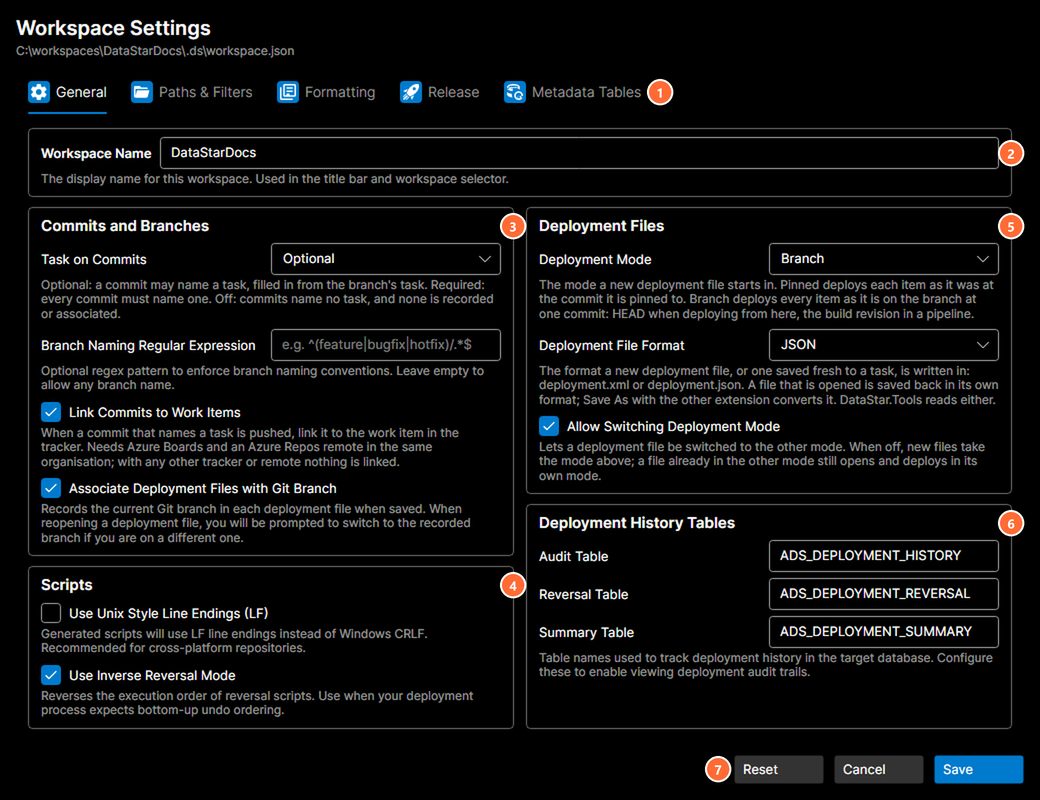
- Tab bar, five tabs: General, Paths & Filters, Formatting, Release, Metadata Tables.
- Workspace Name: the display name for this workspace.
- Commits and Branches: what a commit's task is, branch naming, linking commits to work items, and branch association.
- Scripts: line endings and reversal mode.
- Deployment Files: the mode and format a new deployment file starts in, and whether its mode can be switched.
- Deployment History Tables: table names for audit, reversal, and summary tracking.
- Action buttons: Reset, Cancel, or Save.
Bottom buttons
| Button | What it does |
|---|---|
| Reset | Revert all changes to last saved values. |
| Cancel | Close without saving. |
| Save | Save changes to the workspace file (default action). |
Validation errors appear in a single banner pinned across the top of the window rather than against the individual field. The banner stays visible regardless of which tab you're on, so a value rejected on a different tab can't be hidden behind your current view.
Tab 1: General
Every setting on the General tab has its name on the left, its control on the right and its explanation beneath it, and at the window's default size the whole tab shows without scrolling. On a smaller screen the window opens to fit it, and the tab scrolls.
Workspace Name
Free-text field. The display name for this workspace, shown in the title bar and workspace selector.
Commits and Branches
| Option | What it does |
|---|---|
| Task on Commits | What a commit's task is. Optional (the default): when a task tracker is connected, the commit and check-in dialogs offer a task field, filled in from the branch's active task, that can be changed or cleared; with no tracker the field is not shown and the branch's task is recorded without asking. Required: every commit must name a task, and the dialogs always show the field, tracker or not. Off: commits name no task, and none is recorded or associated. Replaces Require Task ID on Commits: a workspace with it ticked reads as Required, and older versions of DataStar still see the requirement. |
| Branch Naming Regular Expression | Git workspaces only. Optional regex pattern to enforce branch naming conventions (e.g. `^(feature |
| Link Commits to Work Items | Git workspaces only. When a commit that names a task is pushed, link it to the work item in the tracker, where it shows under the work item's Development section as Fixed in Commit. Needs Azure Boards as the tracker and an Azure Repos remote (HTTPS or SSH) in the same organisation on Azure DevOps Services (dev.azure.com or visualstudio.com); with Jira, Azure DevOps Server, or any other remote, nothing is linked. Under Off nothing is linked either. Off by default. A TFVC check-in associates its work item whatever this says, as it always has. |
| Associate Deployment Files with Git Branch | Git workspaces only. Records the current Git branch in each deployment file when saved. When reopening a deployment file, you will be prompted to switch to the recorded branch if you are on a different one. |
The three Git-only settings are hidden on TFVC workspaces, so the General tab doesn't offer settings that don't apply.
Scripts
| Option | What it does |
|---|---|
| Use Unix Style Line Endings (LF) | Generated scripts will use LF line endings instead of Windows CRLF. Recommended for cross-platform repositories. |
| Use Inverse Reversal Mode | Reverses the execution order of reversal scripts. Use when your deployment process expects bottom-up undo ordering. |
Deployment Files
| Option | What it does |
|---|---|
| Deployment Mode | The mode a new deployment file starts in. Pinned deploys each item as it was at the commit it is pinned to. Branch deploys every item as it is on the branch at one commit: HEAD when deploying from here, the build revision in a pipeline. Defaults to Pinned. See Pinned and Branch mode. |
| Deployment File Format | The format a new deployment file, or one saved fresh to a task, is written in: deployment.xml or deployment.json. A file that is opened is saved back in its own format; Save As with the other extension converts it. DataStar.Tools reads either. Defaults to XML. |
| Allow Switching Deployment Mode | Lets a deployment file be switched to the other mode. When off, new files take the mode above; a file already in the other mode still opens and deploys in its own mode. On by default. |
Deployment History Tables
Table names used to track deployment history in the target database. Configure these to enable viewing deployment audit trails.
| Field | Example |
|---|---|
| Audit Table | DeploymentAudit |
| Reversal Table | DeploymentReversal |
| Summary Table | DeploymentSummary |
Tab 2: Paths & Filters
Component Location
Relative path where generated component scripts (tables, views, procedures) are stored, organised by subdirectory for each category.
Reversal Location
Relative path where reversal packages (undo scripts) are generated during deployment.
Changeset Location
Relative path where changesets are kept, one folder per work item, for templates that deploy changesets. Defaults to changesets. It sits beside the component location, never inside a category, so component listing never sees a changeset.
Template Directories
A list of directories containing script templates. Templates are loaded in order; duplicates from later directories are ignored.
- Columns: Path, Enabled (checkbox).
- Add / Delete buttons beneath the list.
Path Filters
External script locations included in deployment files. Use the Cloak column to exclude subdirectories and Weight to control execution order.
- Columns: Path, Weight, Cloak (checkbox).
- Add / Delete buttons beneath the list.
Tab 3: Formatting
File Name Formatting
Controls how component file names are formatted when generated. Invalid filename characters are automatically replaced.
| Option | What it does |
|---|---|
| Enforce Single Space Formatting | Collapses multiple consecutive spaces in file names into a single space. |
| Case Formatting | Dropdown: applies the selected casing rule (upper, lower, camel, or none) to generated component file names. |
Search & Replace Rules
Custom text substitutions applied to component file names during generation. Useful for removing prefixes, normalising naming, or stripping schema qualifiers.
- Columns: Search, Replace, Enabled (checkbox).
- Add / Delete buttons beneath the list.
Tab 4: Release
Controls what the Release Workflow does when you finalise.
Deployment File Storage
Choose where deployment files are stored during the release workflow. Radio buttons:
- Task Attachment. Saved as an attachment on the task.
- Workspace Location. Saved to a folder in the workspace under source control.
When Workspace Location is selected, an additional field becomes enabled:
- Folder Pattern. Where inside the workspace to save. Use
{TaskId}for the task ID. Example:releases/{TaskId}/{TaskId}.xml. A preview of the resolved path is shown beneath the input.
Git Tag on Finalize
Creates a Git tag when you finalise. Leave empty to skip. Placeholders: {TaskId} for the task ID and {DateTime:format} for date/time (e.g. yyyy.MM.dd-HH.mm).
Example: release/{TaskId}/{DateTime:yyyy.MM.dd}. A preview of the resolved tag is shown beneath the input.
Azure Pipeline Trigger
Queues the named pipeline after finalisation completes. Leave empty to skip.
| Field | Notes |
|---|---|
| Pipeline | Pipeline name, e.g. Deploy-Production. |
| Branch | Leave empty to use the current branch (Git) or the default. |
Tab 5: Metadata Tables
Database dictionary / catalogue tables exposed to AI agents via the MCP server. These are vendor-specific tables that provide schema metadata. The AI agent can search across all configured tables to answer questions like "tell me about table X" or "what columns does Y have".
- One column: Table Name.
- Add / Delete buttons beneath the list.
See the metadata tables guide for recommended starter sets.