Enabling the MCP Server
The MCP server is off until you enable it. Flipping it on takes about 30 seconds.
Turn it on
- Open Preferences (Tools → Preferences, or Ctrl + ,).
- Find the MCP Server section.
- Set the port (workspace-specific; default
3000). - (Optional) Tick Start MCP server when this workspace loads to auto-start the server each time you open this workspace.
- (Optional) Tick Allow AI agents to modify data in this workspace if you want write tools enabled here.
- Click Apply.
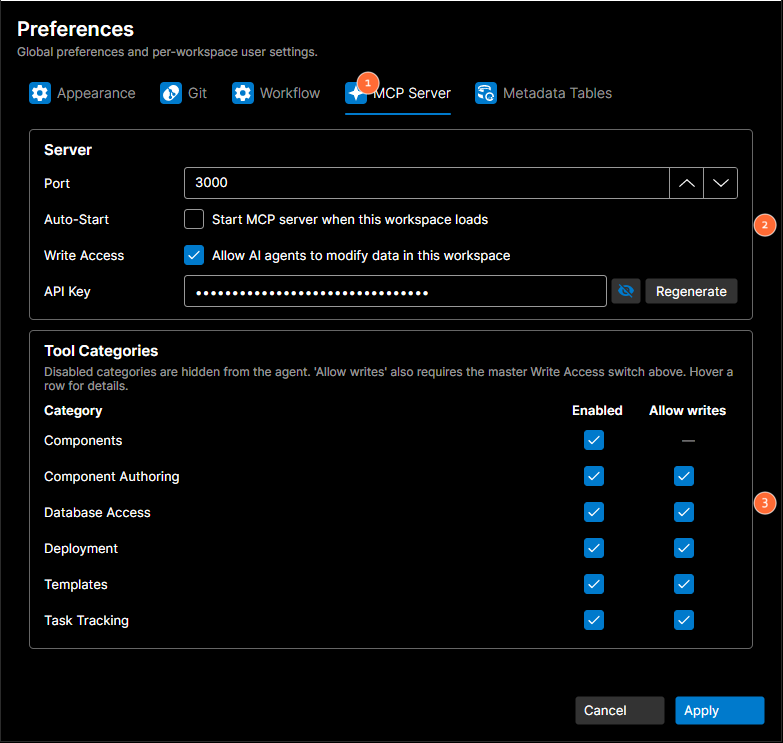
- Tab bar: select the MCP Server tab from the five preference tabs.
- Server: port, auto-start, write access, and the API key with show/hide and Regenerate.
- Tool Categories: per-category enable and Allow writes switches. See Tool categories below.
The server starts immediately. You'll see its status in the status bar at the bottom of the main window:
| Indicator | Meaning |
|---|---|
| MCP: Running (3000) | Listening on the port shown. |
| MCP: Stopped | Disabled, or stopped manually. |
| MCP: Error | Failed to start; hover for the reason. |
Quick toggle from the status bar
The MCP icon in the status bar is also a button. Click it to start the server if it is stopped, or stop it if it is running. Hover over the icon for its current state and port. This is the fastest way to flip the server on and off during a working session without opening preferences.
Port
The default is 3000. Port is a workspace-specific setting; each workspace keeps its own value. This means two DataStar instances can run side-by-side against different workspaces without colliding on a shared port. Change it in the MCP preferences pane if you need to:
- Another application is already using port 3000.
- You want two workspaces open simultaneously, each with its own MCP server.
The server binds to 127.0.0.1. It never listens on an external interface, regardless of the port you choose.
Allow write access
Read tools (everything marked ReadOnly in the catalog) work as soon as the server is on.
Write tools require an extra opt-in per workspace. Tick Write Access in the MCP preferences pane. Because the setting is workspace-scoped, you can trust writes in a development workspace while leaving them disabled in a production-facing one. While off, the agent still sees the read tools but any attempt to mutate state is rejected.
- Creating or applying drafts.
- Switching to a task's branch, pulling a task's changeset rows, committing and pushing (
work_on_task,pull_task_rows,commit_task_changes,push_task_changes). - Extracting scripts to the workspace.
- Deleting components.
- Creating, updating, transitioning, commenting on, or linking tasks.
- Running
execute_sqlin a write mode (mode='dryRun'ormode='commit') — i.e. SQL that uses the write path. - Building a deployment file with
manage_deployment(action='build',save=true).
It does not cover reading the database (execute_sql with mode='read' is the read-only path), reading workspace files, or any of the read-only workspace, dependency, or comparison tools.
Tool categories
DataStar's MCP tools are grouped into six categories so you can give an AI client only the access it needs. Find them under Preferences → MCP Server → Tool Categories.
| Category | What it covers |
|---|---|
| Components | Browse components, dependencies, and comparisons. Read-only. |
| Component Authoring | Extract and delete components, manage drafts, and work on a task: switch to its branch, pull its changeset rows, commit and push (Git only, except pull_task_rows). |
| Database Access | Run SQL against saved connections (execute_sql). list_saved_connections is an always-available discovery helper. Allow writes permits transactional execute_sql (dryRun/commit), the path that runs generated deployment and reversal scripts. |
| Deployment | Generate reversal (rollback) SQL and build/read deployment files. Allow writes only saves a built deployment file; it does not run anything. Executing the SQL is done via execute_sql under Database Access. |
| Templates | Retrieve a template's XSD schema. Read-only. |
| Task Tracking | Read, search, create, update, transition, comment on, link, and attach files to tasks in Jira or Azure Boards. |
Each category has:
- Enabled: when off, every tool in the category is hidden from the agent's tool list. Useful for giving an AI client a narrow surface (for example, "only Components and Database Access" for a code-review assistant).
- Allow writes: only shown for categories that contain write tools. The category-level switch is ANDed with the workspace-level Write Access master switch above; both must be on for any write to succeed. When the master switch is off, per-category settings are remembered but suppressed.
When a write is rejected, the error message tells you which gate is closed (master switch or specific category) so it's clear where to flip the setting.
Regenerate the API key
The MCP server protects itself with an API key. Every request from an AI client must present it.
- On first start, an API key is generated for you. Copy it from the MCP preferences pane.
- Click Regenerate to invalidate the old key and create a new one. Any AI client still using the old key will get a 401 on the next call; reconfigure it with the new key.
- Rotate the key if you've pasted it somewhere it shouldn't have gone.
Verify it's working
The status bar at the bottom of the main window is the primary indicator. MCP: Running (3000) means the server is listening and ready for connections.
For a quick end-to-end check from a terminal, send an MCP initialize request:
curl -X POST http://127.0.0.1:3000/mcp \
  -H "X-API-Key: YOUR_API_KEY" \
  -H "Content-Type: application/json" \
  -H "Accept: application/json, text/event-stream" \
  -d '{"jsonrpc":"2.0","id":1,"method":"initialize","params":{"protocolVersion":"2024-11-05","capabilities":{},"clientInfo":{"name":"curl","version":"1.0"}}}'
A healthy server responds with a JSON-RPC result describing its capabilities. If you get:
- Connection refused. The server isn't running. Check the status bar.
- 401 Unauthorized. Your API key is wrong or missing.
- 403 Forbidden. The request isn't coming from the local machine. Only loopback traffic is accepted.
Sessions
MCP sessions are persisted to disk and live for up to seven days of idle time. The practical effect:
- A client that records its session ID can reconnect after a DataStar restart with no
initializehandshake; DataStar rehydrates the session from disk on first request. - Sessions are evicted automatically once they go a week without traffic.
- Sessions are scoped to the workspace they were opened against. Switching workspaces does not migrate them.
This is what lets long-running assistants and editor integrations survive a normal "close the app overnight" cycle without losing their context.
Stopping the server
- Click the MCP indicator in the status bar; toggles the server off immediately.
- Quitting DataStar stops the server too.
The server does not keep running in the background after DataStar closes, even if Auto-Start is on.
Next
- Configure metadata tables so the agent can answer questions like "what UDF columns are defined on ACCOUNT?"
- Wire up your AI client: Claude Desktop, Kiro, or similar.