User Preferences
Open with Tools → Preferences… on the main menu bar. A modal window with five tabs. Some tabs configure per-user settings (theme, Git defaults); others configure workspace-scoped settings that happen to be edited from this dialog (Clone wizard draft retention, database auto-connect, MCP workspace defaults, metadata tables).
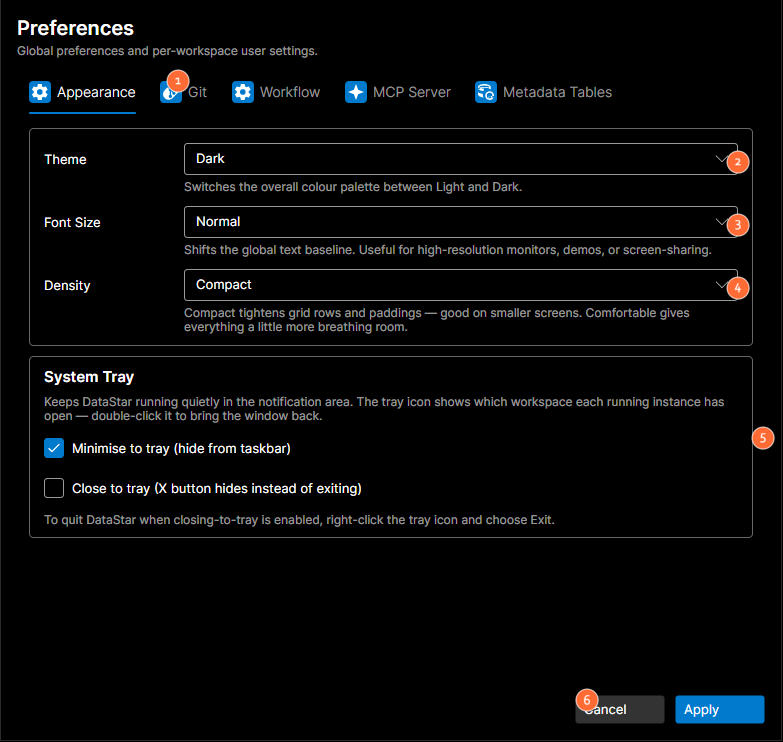
- Tab bar, five tabs: Appearance, Git, Workflow, MCP Server, Metadata Tables.
- Theme: switches between Light and Dark.
- Font Size: shifts the global text baseline.
- Density: Compact or Comfortable spacing.
- System Tray: minimise-to-tray and close-to-tray options.
- Action buttons: Cancel or Apply.
Bottom buttons
| Button | What it does |
|---|---|
| Cancel | Close without saving. |
| Apply | Save and close (default action). |
Tab 1: Appearance
Visual settings that apply to the whole application for your Windows user.
| Field | What it does |
|---|---|
| Theme | Dropdown: visual theme for the whole application. |
| Font Size | Dropdown: base font-size preset. |
| Density | Dropdown: spacing preset (compact vs. comfortable). |
System Tray
| Field | What it does |
|---|---|
| Minimise to tray (hide from taskbar) | Checkbox. When ticked, minimising the window sends DataStar to the system tray rather than leaving an entry on the taskbar. |
| Close to tray (X button hides instead of exiting) | Checkbox. When ticked, pressing the window close button hides the app to the tray instead of exiting. Use File → Exit or the tray icon to fully quit. |
Tab 2: Git
Applies when the workspace uses Git for version control. Settings are per-user.
General
| Field | What it does |
|---|---|
| Use system-installed Git | Checkbox. When ticked, DataStar calls the git executable on your PATH rather than using its embedded Git implementation. |
| Fetch from remote on workspace load | Checkbox. When ticked, DataStar runs git fetch each time a Git workspace opens. |
| Branch Template | Text field. The template used when the Create Branch dialog pre-fills a name. Supports {taskid} as a placeholder. Watermark: "e.g. feature/{taskid}". |
Execution
Concurrency and per-call timeouts for Git. Leave a field blank to use the built-in default (shown as the watermark). Changes take effect on the next workspace load.
| Field | What it does |
|---|---|
| Max concurrent readers | Cap on parallel read-only Git operations against the same repository. |
| Lock acquire timeout (s) | How long to wait for the internal repository lock before giving up. |
| Quick read timeout (s) | Applies to short-running reads such as rev-parse, branch --show-current, and config. |
| Standard read timeout (s) | Applies to log, status, diff, show, and ls-files. |
| Standard write timeout (s) | Applies to checkout, commit, stage, reset, and restore. |
| Network timeout (s) | Applies to fetch, pull, push, clone, and ls-remote. |
The defaults are tuned for typical workspaces; raise the timeouts if you work on a slow machine, a large repository, or a high-latency network.
Tab 3: Workflow
Workspace-scoped settings that govern the Clone wizard and database auto-connect.
Clone Wizard
When you start cloning a component, the wizard saves your edits to a JSON draft so you can pick up where you left off. Drafts older than the retention window are deleted on the next wizard open.
| Field | What it does |
|---|---|
| Draft retention (days) | NumericUpDown (0–365, default 30). How long a Clone wizard draft is kept after its last edit. 0 disables cleanup so drafts live forever. |
Database Auto-connect
Picks whether DataStar reconnects to a saved database connection each time this workspace loads. The connection itself is chosen elsewhere (typically when you first connect via Workspace → Connect); this section only toggles the auto-connect behaviour and displays the current target.
| Field | What it does |
|---|---|
| Auto-connect on workspace load | Checkbox. When ticked, DataStar reconnects to the Target below whenever this workspace opens. Available only when a target has been set and the connection uses Windows authentication or has saved credentials. |
| Target | Read-only summary of the saved connection that will be reconnected. |
| Clear Auto-connect | Removes the auto-connect target for this workspace. |
Tab 4: MCP Server
Controls for the embedded Model Context Protocol server. See the MCP overview for what this is.
Server
Port, auto-start, and write access are workspace-scoped, so multiple instances can run side-by-side without colliding. The API key is global and shared across workspaces.
| Field | What it does |
|---|---|
| Port | Number spinner (1024–65535). The TCP port the MCP server listens on when serving this workspace. |
| Auto-Start | Checkbox. When ticked, the server auto-starts whenever this workspace is opened. |
| Write Access | Checkbox. When ticked, MCP tools that change workspace or database state are eligible to run. When unticked, only read-only tools work, regardless of per-category settings. |
| API Key | The current key, with show/hide toggle and Regenerate button. Regenerating invalidates the old key, so any AI client still using it will get a 401 until it's reconfigured. |
Tool Categories
DataStar's MCP tools are grouped into six categories. Each category has an Enabled switch (the agent doesn't see disabled categories at all) and, where the category contains write tools, an Allow writes switch. Per-category writes are gated by the master Write Access switch above; turn that off and per-category writes are suppressed (their values are remembered for when you turn it back on).
| Category | What it covers |
|---|---|
| Components | Browse components, metadata tables, dependencies, and comparisons. Read-only. |
| Component Authoring | Extract and delete components, manage drafts, and stage the deployment basket. |
| Database Access | Run SQL against saved connections. execute_sql is gated here; list_saved_connections is an always-available discovery helper. Allow writes permits transactional execute_sql (dryRun/commit), which is the path that runs generated deployment and reversal scripts against the database. |
| Deployment | Generate reversal (rollback) SQL and build/read deployment files. Allow writes only lets the agent save a built deployment file; it does not execute anything. Running the SQL is done via execute_sql under Database Access. |
| Templates | Retrieve a template's XSD schema. Read-only. |
| Task Tracking | Read, search, create, update, transition, comment on, link, and attach files to tasks in Jira or Azure Boards. |
See Enable the MCP server for the setup walkthrough and MCP Tool Catalog for the per-tool reference.
Tab 5: Metadata Tables
Additional metadata tables that the MCP server exposes to AI clients, scoped to the currently-loaded workspace. Same concept as the Workspace Settings → Metadata Tables tab, split into:
| Section | What it holds |
|---|---|
| Team defaults | Read-only list of metadata tables defined in Workspace Settings → Metadata Tables (these are team-shared and committed to the workspace). |
| My additions | Editable grid of extra tables you want to expose for your own use on this machine. Add / Delete buttons. Not shared with the team. |
See MCP metadata tables for what a metadata table is and how it's used.