Azure DevOps - How to Package Templates
To use the reversal feature in a release pipeline, the component templates need to be available to DataStar.Tools at deploy time. The simplest approach is a small Azure DevOps build that:
- Pulls the templates from source control.
- Wraps them in a NuGet package.
- Publishes the package to the artefact feed the release pipeline uses.
Build setup
A) Check in the templates. Create a build with Get Sources mapped to the template folder. Set the local path to NuGet:

B) Add a nuspec file. Commit a DataStar.CmdLine.nuspec alongside the templates (a package folder is conventional):
<?xml version="1.0" encoding="utf-8"?>
<package xmlns="http://schemas.microsoft.com/packaging/2010/07/nuspec.xsd">
  <metadata>
    <id>DataStar.CmdLine</id>
    <version>$version$</version>
    <description>DataStar Command Line</description>
    <authors>Absolute Technology Limited</authors>
    <title>DataStar.CmdLine</title>
    <copyright>Copyright Absolute Technology Ltd: All rights reserved</copyright>
    <dependencies></dependencies>
  </metadata>
  <files>
    <file src="*\**\*.*" target=""/>
  </files>
</package>
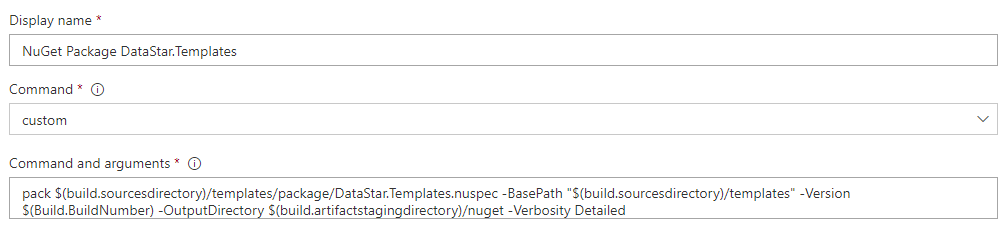
C) Pack with NuGet. Add a NuGet step set to custom and invoke pack against the nuspec. On older Azure DevOps versions, a small PowerShell script is the usual workaround:
D) Publish the artefact. A Publish Build Artifacts step puts the package where the release pipeline can pick it up.